How to Install and Configure PrestaShop Modules: A Complete Step-by-Step Guide
PrestaShop modules are powerful extensions that help you add new features and improve your online store without making complex changes to its core code. Whether you want to add payment gateways, improve SEO, configure shipping methods, integrate marketing tools, or enhance customer experience, PrestaShop modules make it easier.
In this guide, you’ll learn how to install, configure, manage, and troubleshoot PrestaShop modules step by step.
1. What Are PrestaShop Modules?
PrestaShop modules are add-ons that extend the functionality of your eCommerce store. They allow you to customize your store according to your business requirements.
Some popular types of PrestaShop modules include:
SEO modules: Improve search engine visibility.
Payment modules: Add payment options such as PayPal and Stripe.
Shipping modules: Integrate shipping carriers and delivery services.
Marketing modules: Add email marketing, promotions, and social media integrations.
Analytics modules: Track visitors, sales, and customer behavior.
Security modules: Improve store protection and security.
2. How to Access the PrestaShop Module Manager
Before installing a module, you need to access the Module Manager from your PrestaShop administration dashboard.
Follow these steps:
Log in to your PrestaShop Back Office.
Navigate to Modules → Module Manager.
You will see the list of installed modules.
Use the search bar to find a specific module.
You can also explore available modules and services.
The Module Manager allows you to install, configure, enable, disable, and uninstall modules.
3. How to Install a PrestaShop Module
There are different ways to install modules in PrestaShop. The most common method is uploading a module ZIP file through the Back Office.
Method 1: Install a Module Using a ZIP File
Download the module ZIP file from a trusted source.
Log in to your PrestaShop Back Office.
Go to Modules → Module Manager.
Click the Upload a Module button.
Select your downloaded ZIP file.
Wait for PrestaShop to upload and install the module.
Once installed, click Configure to set it up.
Method 2: Install a Module from PrestaShop Marketplace
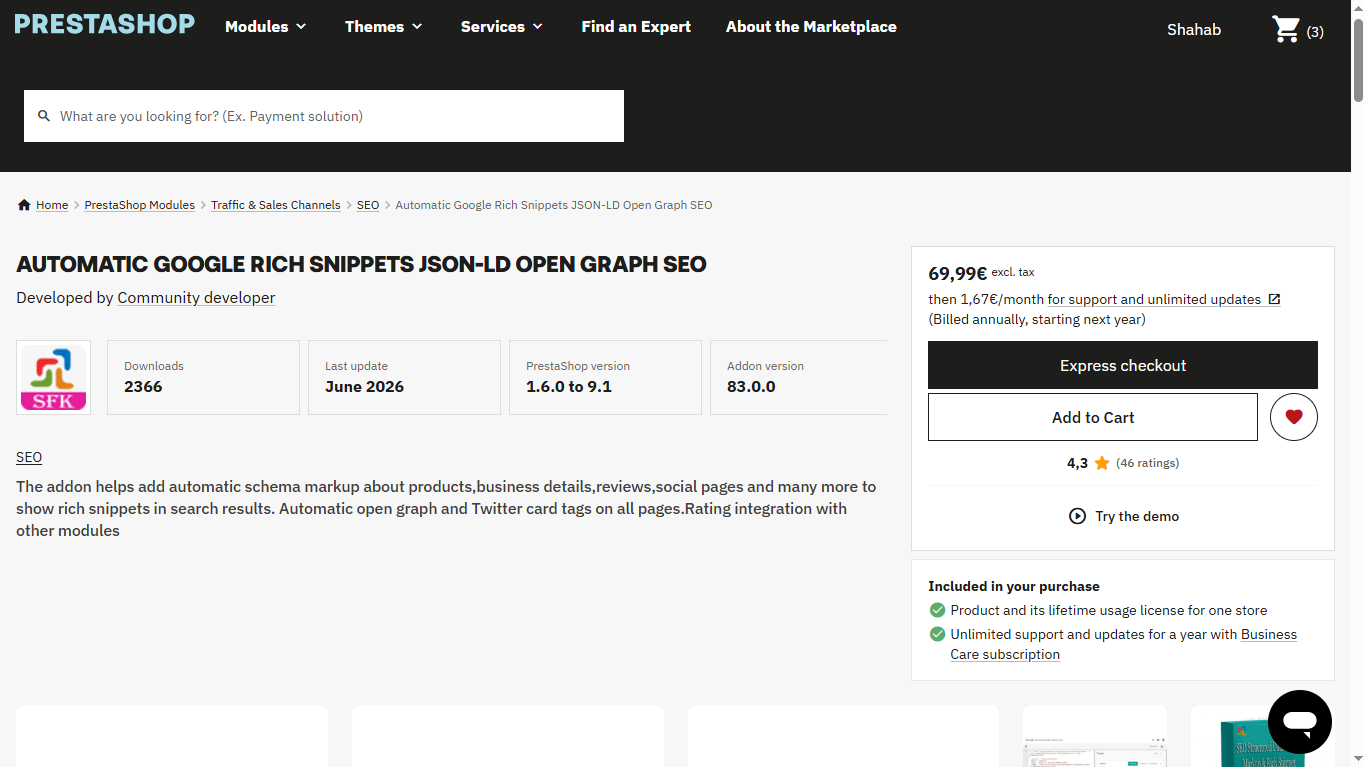
You can also discover and install compatible modules through the official PrestaShop Marketplace.
Visit the official PrestaShop Addons Marketplace.
Search for the module you need.
Review its features, compatibility, and documentation.
Purchase or download the module.
Follow the provider’s installation instructions.
Method 3: Install a Module Manually Using FTP
If Back Office installation is unsuccessful, you can install a module manually.
Download and extract the module ZIP file.
Connect to your hosting server using an FTP client.
Open the PrestaShop installation directory.
Navigate to the
/modules/folder.Upload the extracted module folder.
Open your PrestaShop Back Office.
Go to Module Manager and locate the uploaded module.
Click Install.
Make sure the module folder contains the correct module files and has the correct permissions.
4. How to Configure a PrestaShop Module
After installation, you need to configure the module to make it work according to your store requirements.
Follow these steps:
Go to Modules → Module Manager.
Search for your installed module.
Click the Configure button.
Review the available configuration options.
Enter the required information, such as API keys, account credentials, or preferences.
Enable the required features.
Click Save to apply your changes.
Example: If you install a payment gateway module, you may need to enter API credentials, select payment methods, configure supported currencies, and enable payment options at checkout.
5. How to Enable or Disable a Module
You can enable or disable modules whenever your store requirements change.
To enable a module:
Open Module Manager.
Search for the module.
Click Enable or Activate.
To disable a module:
Find the installed module.
Click Disable or Deactivate.
Check your storefront to ensure everything works correctly.
Disabling a module generally preserves its configuration, allowing you to activate it again later.
PrestaShop
6. How to Update PrestaShop Modules
Regular module updates help improve security, performance, compatibility, and functionality.
Follow these steps:
Open Modules → Module Manager.
Search for available module updates.
Check the latest version and update information.
Review compatibility with your PrestaShop version.
Back up your store.
Click Update if an update is available.
Test your store after updating.
Always test important updates on a staging website before applying them to your live store.
7. How to Uninstall or Delete a PrestaShop Module
If you no longer need a module, you can uninstall it or delete it.
Disable: Temporarily stops the module while retaining its settings.
Uninstall: Removes the module’s installation and configuration data, while generally keeping its files.
Delete: Removes the module files from your store.
Before uninstalling, check whether the module stores important information or affects other modules.
PrestaShop
8. Common PrestaShop Module Installation Problems
Sometimes you may encounter errors while installing or configuring modules.
Here are some common problems and their solutions:
| Problem | Possible solution |
|---|---|
| Module upload failed | Check ZIP file and PHP upload limits |
| Module not appearing | Verify the folder is inside /modules/ |
| Compatibility error | Download a compatible module version |
| Configuration page not loading | Check server logs and module errors |
| Module not working | Check required dependencies and settings |
| Store displaying errors | Disable the problematic module and investigate |
| Module conflicts | Check for overlapping functionality |
Important troubleshooting tips:
Check whether PHP ZIP extension is enabled.
Verify file and folder permissions.
Clear PrestaShop cache after changes.
Check module documentation.
Review error logs in your hosting control panel.
If the ZIP upload fails, check the hosting server’s upload_max_filesize and post_max_size settings.
PrestaShop+1
9. Best Practices for Managing PrestaShop Modules
To maintain a fast, secure, and reliable online store, follow these best practices:
Download modules only from trusted developers and marketplaces.
Check compatibility before installing any module.
Avoid installing unnecessary modules.
Keep all installed modules updated.
Back up your website before installing or updating modules.
Test new modules on a staging website.
Remove unused modules.
Monitor website performance after installation.
Check for conflicts between modules.
Review module permissions and security requirements.
10. Conclusion
Installing and configuring PrestaShop modules is an effective way to extend your online store’s functionality. Whether you want to improve SEO, add payment methods, automate shipping, or enhance customer experience, the right modules can help your business grow.
Always choose reliable modules, check compatibility, configure settings correctly, and keep your modules updated to ensure your PrestaShop store runs smoothly.
Frequently Asked Questions (FAQs)
1. How do I install a module in PrestaShop?
Go to Modules → Module Manager, click Upload a Module, select your ZIP file, and wait for installation to complete.
2. Are PrestaShop modules free?
PrestaShop offers both free and paid modules. You can find them on the official PrestaShop Addons Marketplace.
3. Can I install PrestaShop modules manually?
Yes. Upload the extracted module folder to the /modules/ directory using FTP, then locate and install it through Module Manager.
4. How do I configure an installed module?
Navigate to Module Manager, search for the installed module, and click Configure to access its settings.
5. Why is my PrestaShop module not working?
Common reasons include version incompatibility, missing dependencies, incorrect configuration, PHP errors, or conflicts with other modules.
6. Can I uninstall a PrestaShop module without deleting it?
Yes. Uninstalling removes its installation and configuration data but generally keeps its files. You can delete it separately.
Suggested SEO Details
SEO Title: How to Install and Configure PrestaShop Modules
Meta Description: Learn how to install, configure, update, and manage PrestaShop modules with this step-by-step guide. Troubleshoot common installation problems.
URL Slug: install-configure-prestashop-modules
Focus Keyword: Install and Configure PrestaShop Modules
Related Keywords:
PrestaShop module installation
PrestaShop Module Manager
PrestaShop module configuration
Install PrestaShop addons
Manage PrestaShop modules
PrestaShop module troubleshooting
Suggested Image Alt Text: How to install and configure modules in PrestaShop Back Office.
Tags:
#PrestaShop #PrestaShopModules #PrestaShopTutorial #eCommerce #OnlineStore #PrestaShopDevelopment #ModuleManager #PrestaShopTips #eCommerceDevelopment
Official references: